
The subscription queue for Shopify
Let subscribers line up what they'll get next, like a watchlist for your products.
What is a subscription queue?
A standard subscription ships the same thing on a schedule, or whatever you decide to send. A subscription queue shows each subscriber their upcoming deliveries as a list they control. They can add a product, swap one out, drag deliveries into a new order, or ask for a surprise. The subscription becomes something they curate, not something that happens to them.
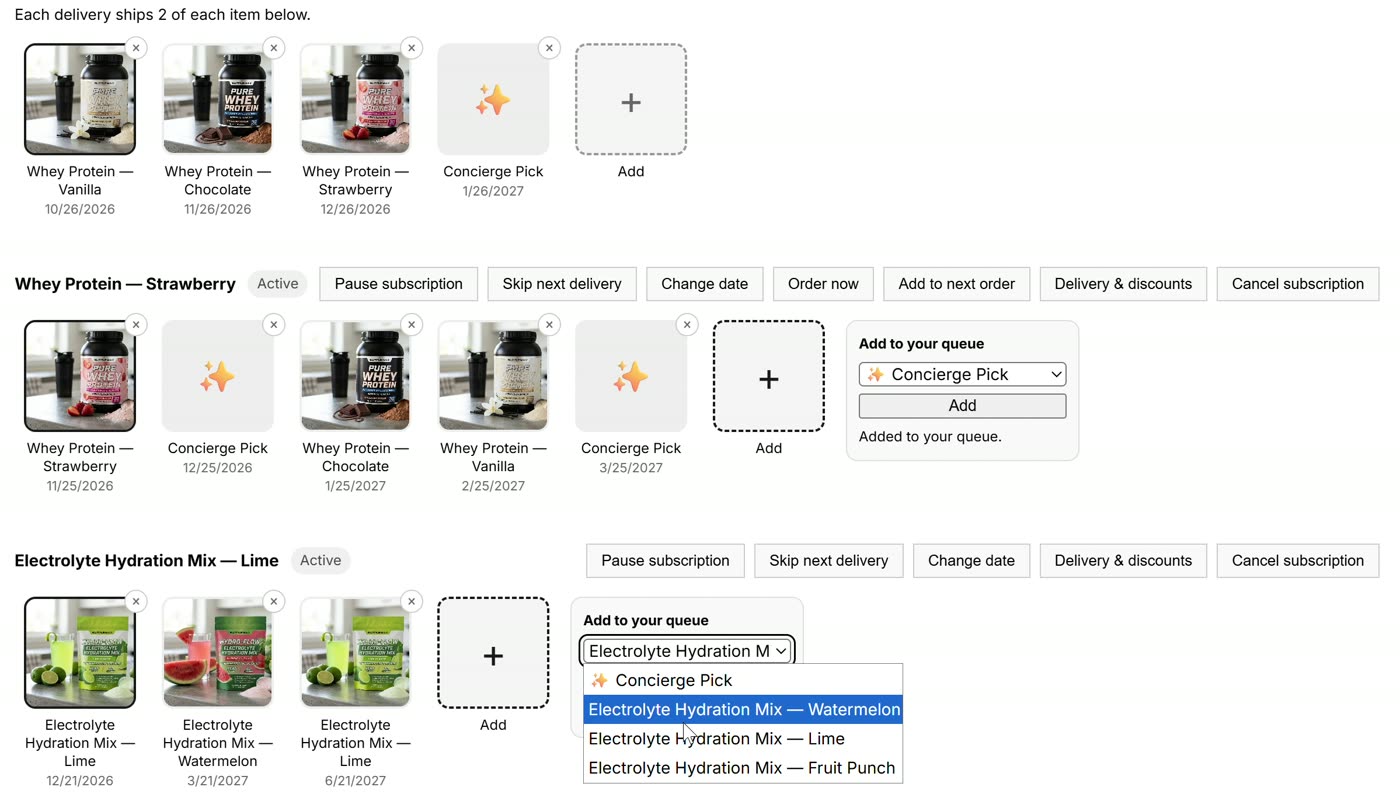
What subscribers can do
- See what's coming, with product photos and dates for each upcoming delivery.
- Add products from the tier they subscribe to.
- Take a Concierge Pick: a product chosen for them by a recommendation model trained on your store.
- Drag to reorder or remove items.
- Skip, pause, reschedule, or order now from the same page.
The queue lives on a page in your storefront, and subscribers on Shopify's new customer accounts also get a Subscriptions page inside their account.
Why it matters for retention
Subscribers often cancel when the next box feels like a charge rather than something they want. A queue gives them a reason to come back between deliveries, a sense of what's next, and control that makes skipping a delivery a better option than canceling.
A queue vs. a standard subscription
| Standard subscription | Subscription queue | |
|---|---|---|
| What ships next | The same product, or whatever the store picks | What the subscriber lined up, or a Concierge Pick |
| Seeing what's coming | Often just a next charge date | Each upcoming delivery with photos and dates |
| Changing it | Swap or cancel | Add, swap, reorder, remove, skip, or pause |
| Reason to visit between deliveries | Rarely | Planning what's next |
How Concierge Picks work
Not every subscriber wants to plan every delivery. A Concierge Pick takes that mental load off them: it's a queue slot the subscriber leaves to us. When it's time to ship, it's filled with a product chosen for that subscriber by a recommendation model trained for your store, on your own catalog and subscriber history, during onboarding. Your model is never shared with other stores. Before it's trained, picks come from your live catalog. Either way, picks only come from the products in that subscriber's tier, and your product weights tilt them toward a launch or away from a low-stock item.
Where subscribers see it
- On your storefront, on a My Subscription page you link from your menu.
- In Shopify's customer accounts, on a Subscriptions page next to their orders.
- Through your support team, who can edit a subscriber's queue from the dashboard when someone emails in.
What you control
- Tiers define which products each subscriber can choose from, at a set price.
- Product weights steer Concierge Picks toward a new launch or away from a low-stock item.
- Analytics show churn by product, tier, and bundle, and forecast inventory from active subscriptions.
Setting it up
- Create tiers: each tier is the set of products a subscriber can choose from, at a set price.
- Add the Queue Manager block to a page in Shopify's theme editor. No theme code is edited.
- Link it from your store menu and customer account menu.
The Getting Started guide has the details, and during the beta we do it with you.
Questions
Can subscribers choose any product?
They choose from the products in their tier, so you decide what each plan includes and what it costs.
Can I feature a new product?
Yes. Give it a positive weight and Concierge Picks favor it. A negative weight eases off an item.
Does it change my theme?
No. The queue is a theme app block you place in the theme editor, and removing the app removes it cleanly.
Can my team change a subscriber's queue?
Yes. Staff can edit any subscriber's queue from the dashboard, and the change is logged.
See the queue on a live store
Subscription Concierge is in private beta. Book a 15-minute demo and we'll walk through it.